

With AI video creation, you can transform ideas into polished scenes in a matter of moments. However, objects, people, movement, or style may appear in the generated footage that you did not request. Negative prompting helps to create boundaries around the visual outcome. It marks out elements that do not need to be included in the intended frame. It works best when there is an accurate description of the desired scene.
What Negative Prompts Do in AI Video Creation
An AI video generator produces video based on instructions provided by a user, including subjects, actions, setting, and camera movement and style. A positive prompt explains what the video should contain. A negative instruction specifies what should not be included or even what should be avoided. Negative instructions don’t always produce complete removal of all the unwanted details. Footage recorded will require a visual check before publication. If there are ongoing issues, then regeneration or editing may be required.
Identify the Problem Before Writing the Negative Prompt
Effective exclusions start with diagnosis and not random negative terms. Specify precisely the harm to the intended visual effect. Ask if the unwanted element is an object, person, background subject, style, movement, or composition. Unwanted zooms, shakes, pans, and rapid movements of the camera can cause problems. It is important to identify the underlying issue in order to develop an accurate exclusion. It avoids giving ambiguous directions that offer little information.
Write Negative Prompts With Specific Visual Boundaries
Certain boundaries provide a clearer purpose for negative prompts throughout the iterative generation. Use specific terms to describe the unwanted object rather than general terms that refer to bad content. Explain distracting background elements that compete with the main subject. Limit camera chaos when the scene calls for stable camera motion. Do not include people who are not relevant to the subject when one person should be the focus. If you are adding exclusions, first define the subject, setting, lighting, composition, and motion. A product scene may call for a product in the center of the scene with little background.
Steps to Cut Unwanted Elements with Negative Prompts in an AI Video Generator
Pippit combines generation, reference media, regeneration, and editing within one workflow. This makes negative prompting easier to test against generated footage. The prompt can identify unwanted objects, people, styles, or movements. A fictional example such as Seeworld can represent unrelated branding that should remain outside the scene.
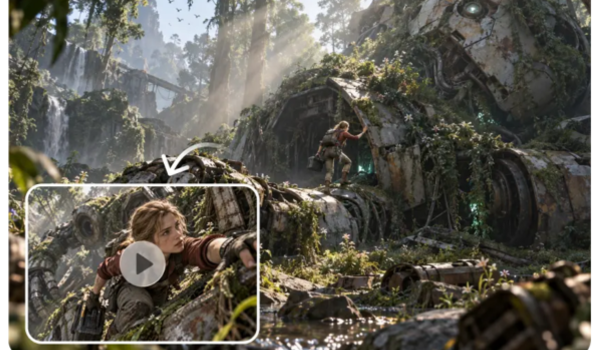
Step 1: Open Your Negative-Prompt Workflow
- Log in to Pippit using your “Google or social media account” before preparing your video prompt.
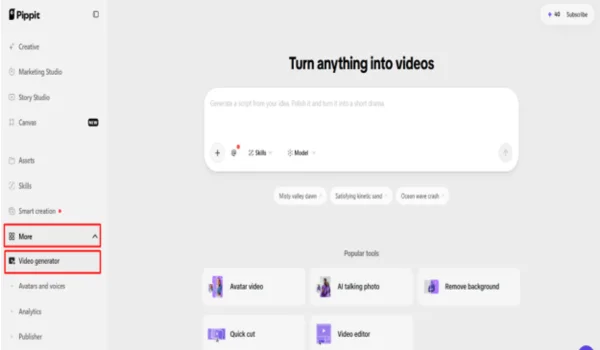
- Open the “Video generator” from the left menu under the “More” tab to begin.
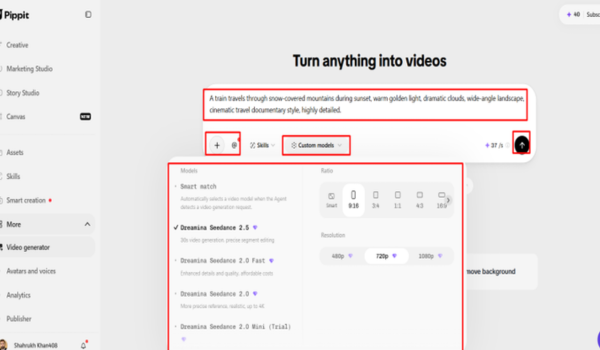
Step 2: Generate with Clear Exclusions
- Select an AI model, such as Dreamina Seedance 2.5, Dreamina Seedance 2.0, or Dreamina Seedance 2.0 Fast.
- You can also select Dreamina Seedance 2.0 Mini, Dreamina Seedance 1.0, or “Auto Route” for flexibility.
- Enter a detailed prompt describing desired visuals, then include unwanted elements that should remain excluded throughout generation.
- Click “+” to upload reference images or videos from your device, phone, Dropbox, or link.
- You can also select assets when references are unavailable or additional media supports your intended video direction.
- Choose an appropriate aspect ratio through the “Ratio” menu and resolution through the “Resolution”
- Use “@” to tag a media file or photo inside your prompt when referencing specific elements directly.
- Review your negative prompts and settings, then click “Generate” to create the revised video.
Step 3: Refine Unwanted-Element Removal
- Preview the generated video and inspect whether unwanted objects or details remain visible within important scenes.
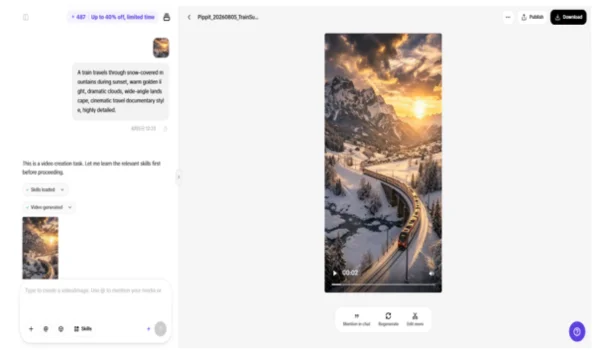
- Click “Regenerate” when unwanted elements persist, or select “Edit more” for further adjustments.
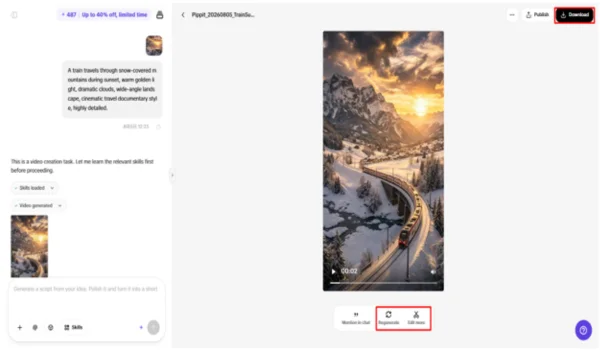
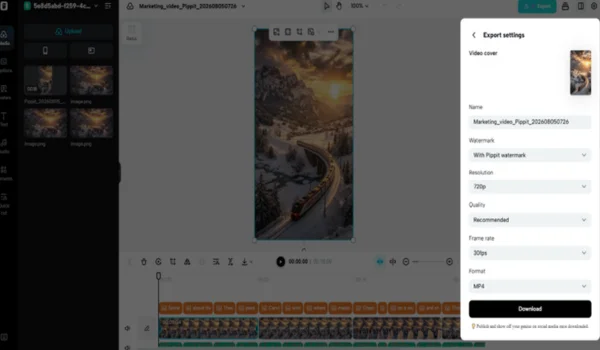
- Manually edit captions, add text, and adjust size, color, alignment, filters, and effects as required.
- Add background music, remove backgrounds, and fine-tune visuals to create cleaner scenes matching your original direction.
- Click “Download” to export the refined video directly to your local device for use.
- To share immediately, click “Publish” to schedule and post your video across connected social channels.
Six Types of Unwanted Elements Worth Addressing
- Background clutter: Remove background elements that interfere with the main subject. Support environments to be simple enough for the central action to be seen.
- Unwanted People: Indicate when unwanted people should not be seen in scenes. This helps to maintain the focus of attention when one topic propels the action.
- Visual artifacts: Recognize distortions, malformed details, or unnatural features in visuals generated. Check all results, as the number of generations may vary from one trial to the next.
- Excessive movement: Minimize camera movement or subject movement that is not necessary. When scenes are moving, it can be easier to understand if the direction of the movement is obvious.
- Style conflicts: Avoid visual treatments that are incompatible with the desired visual style. Explicitly link exclusions to visual language description, which is positive.
- Text clutter: Specify clean visual spaces where captions will be added later. This will maintain the space for manual editing of the text.
Combine Negative Prompts With Positive Prompt Engineering
First, identify the topic that should be evident. Then, tell what should be happening in the scene. Set the scene to help the setting enhance the story. Identify camera movements, framing, camera position, and stability. After these positive details, set creative direction. The structure helps to remove ambiguities better than unrelated negative terms. Pippit can be used multiple times to refine and grow the prompt.
Review, Regenerate, and Refine Instead of Expecting One Perfect Generation
AI video production typically needs editing due to inconsistencies in video generation. Look for any unexpected objects, people, artifacts, or distracting movement in the result. Look at each scene and compare it to the positive and negative instructions. Repeat regeneration if the core scene, subject, or composition is wrong. Once an appropriate base is in place, utilize Pippit’s AI editing features to make targeted adjustments. Review captions, background, effects, transitions, and framing prior to export. Factual checking is also necessary for product-specific visuals prior to publication.
Conclusion
Negative prompts are used to set limits but should not be a substitute for effective positive prompts. The best workflow is a combination of subjects, actions, setting, camera direction, style, and exclusions. Pippit combines generation, reference assets, regeneration, and AI-assisted editing in one workflow. If there is an unwanted element remaining, modify the prompt and/or the footage. Good prompting will convey the ‘how’ of the visual and its limits. Clear boundaries also enable creators to compare generations, adjust instructions without needing to alter the general creative direction.
